When you log in to HARP, you’ll arrive at the dashboard. The dashboard provides a clear,
at-a-glance summary of outstanding requests across all libraries.
Each library is listed alongside the number and type of active requests. This overview
makes it easy to quickly see where work is waiting and what kind of requests need
attention.
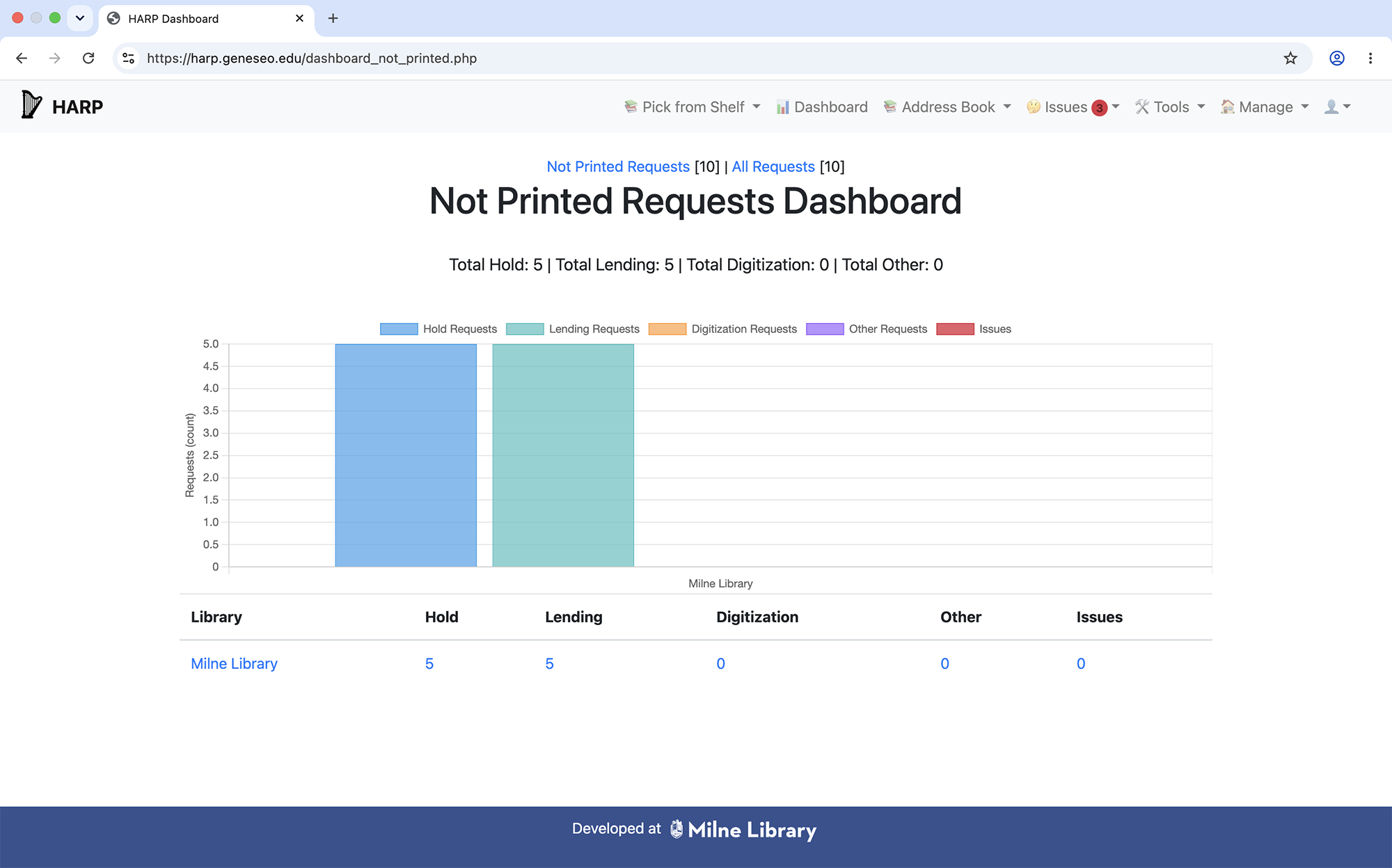
The HARP dashboard showing request volume by library
To begin printing, select an individual library from the dashboard. HARP will load all
printable requests for that library, allowing you to review, filter, and print slips
as needed.
The dashboard is designed to help staff move smoothly from overview to action —
without unnecessary steps or searching.