Within the Address Book menu, you can generate shipping labels for returns by selecting up to six libraries to print. The addresses that are generated here will contain any Address Overrides that you have added to your configuration. Libraries that have been added as Partner Exclusions will not show up in the list of libraries. Your return addresses will be formatted according to the configuration you set for ELD Return Labels and Non-ELD Return Labels.
The HARP Library Selection Menu for generating return labels
Start by selecting up to six libraries that you would like to print shipping labels for.
The HARP Library Selection Menu with six libraries selected
As you continue adding libraries to print shipping labels for, they will appear on the right-hand side list of libraries. Once you are finished selecting your libraries, click the "Generate Labels" button.
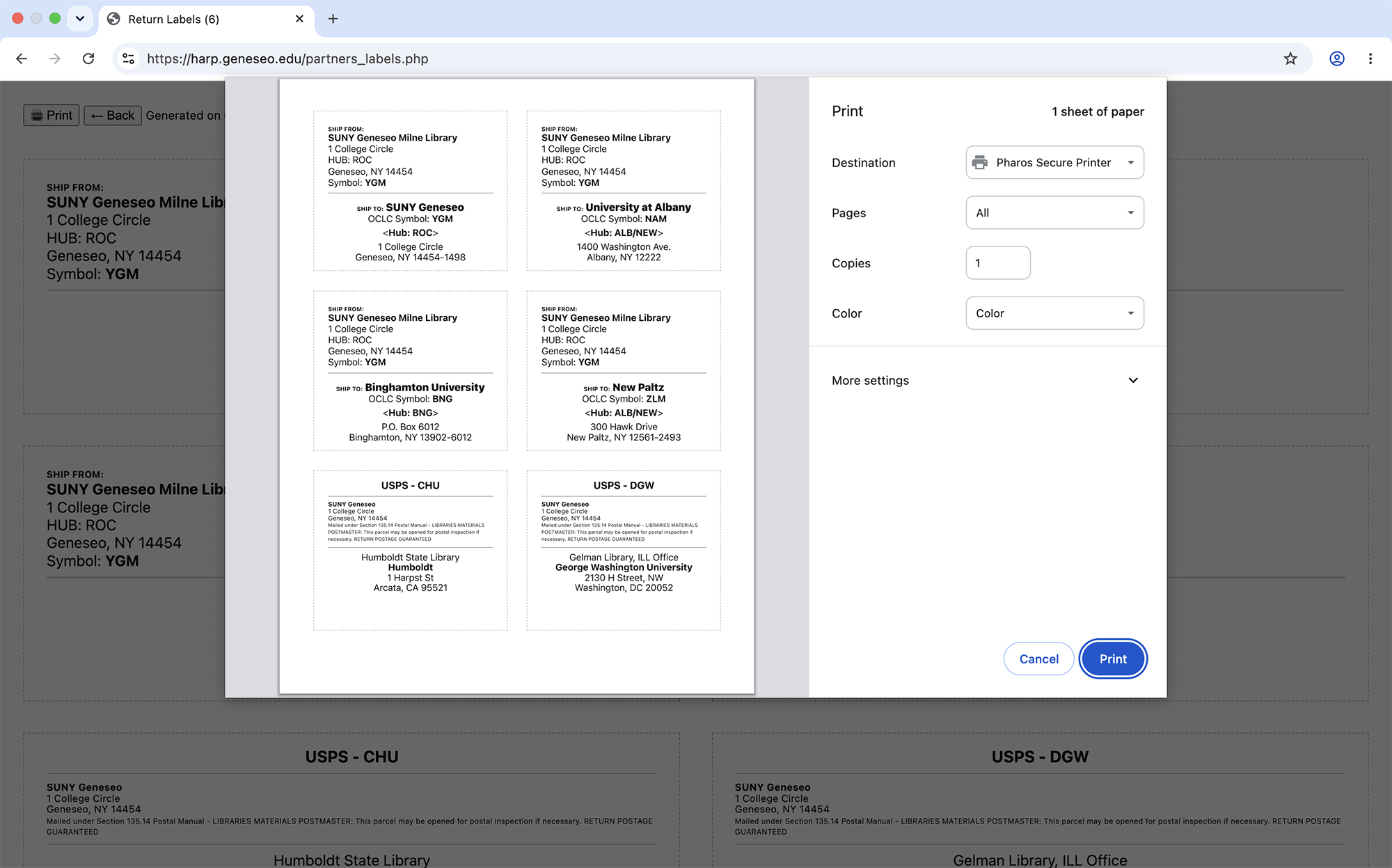
The HARP Shipping Labels printing output
After clicking the "Generate Labels" button, the print dialog box will appear with your formatted labels. From here, you can print as many copies of these addresses as needed.
Shipping labels are configurable. You can adjust the following outputs: